
Main /
Items Purchase
- STEP 1: Open the TMD App
- Launch the TMD Application on your device to access the purchasing dashboard.
 |
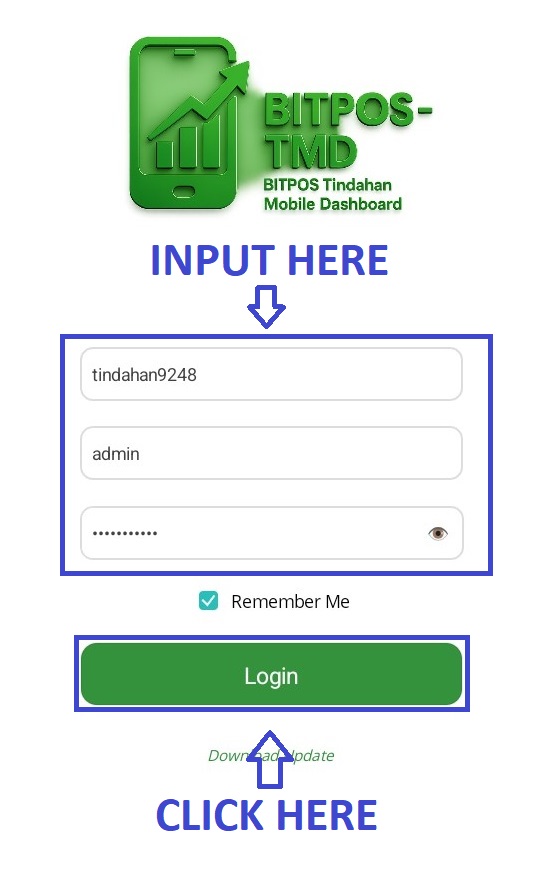
- STEP 2: Log In
- Enter your admin credentials to securely log in to the system.
 |
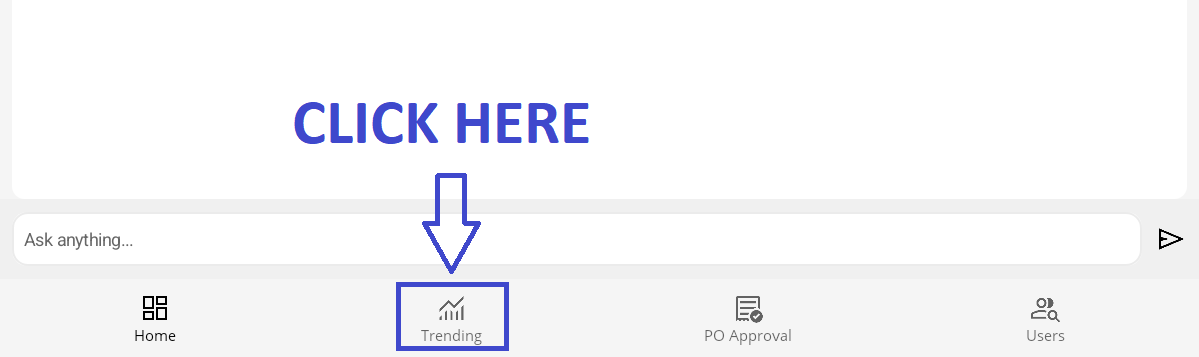
- STEP 3: Click Trending
- Tap the Trending tab located at the bottom of the dashboard to view purchase analytics.
 |
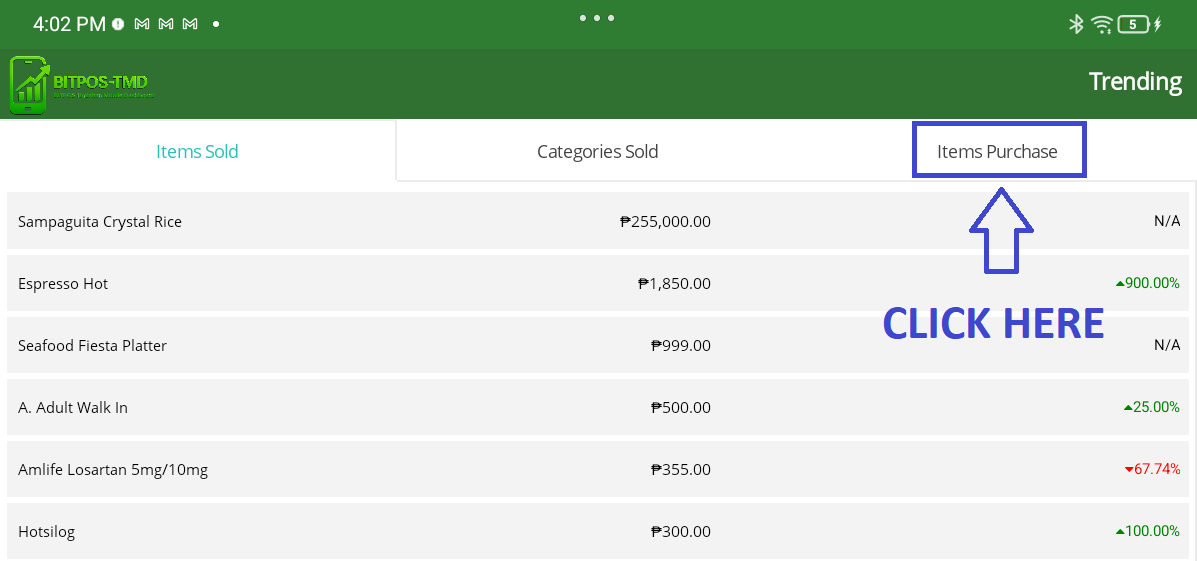
- STEP 4: Click Items Purchase
- Select Items Purchase to display the list of items purchased from suppliers.
 |
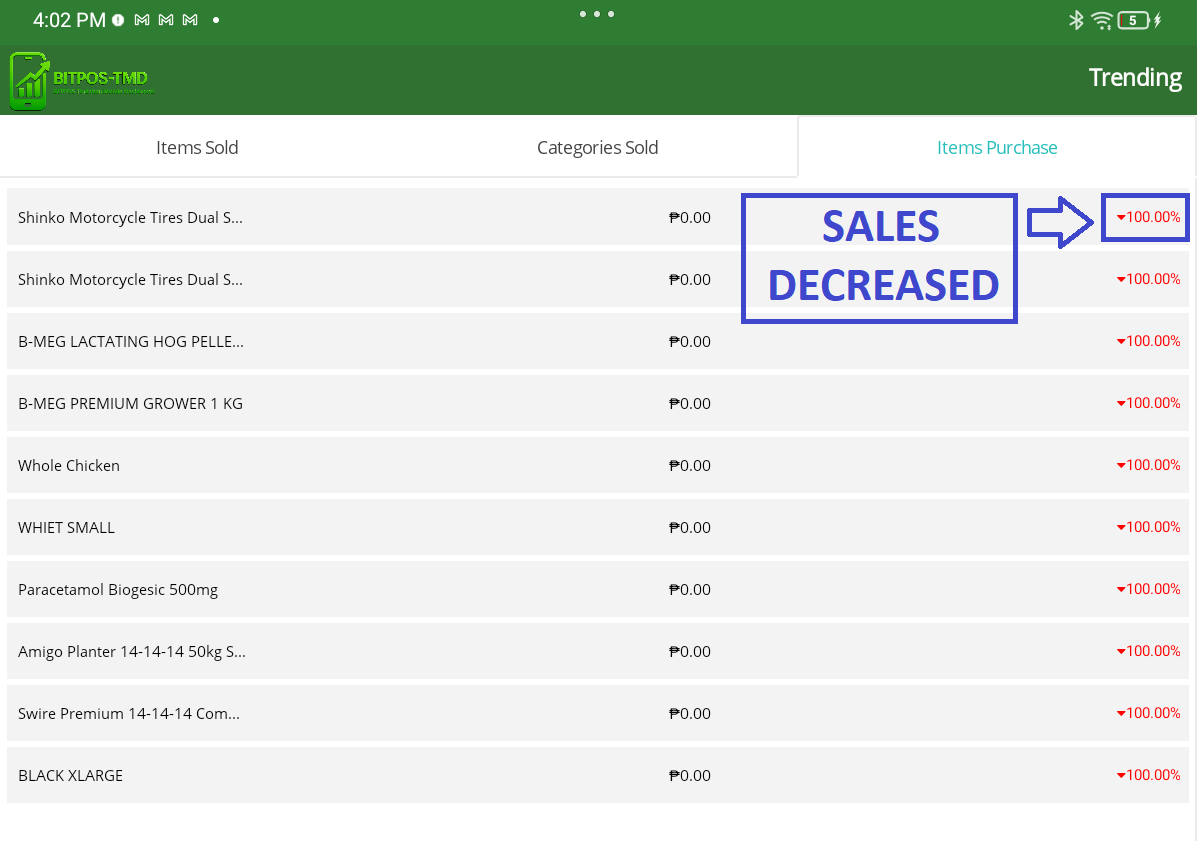
- STEP 5: View Purchased Items List
- Under Items Purchased, you can view the list of products acquired from suppliers along with their purchase trends.
- On the right side, the indicators represent performance:
- N/A – No purchases made
- Green with an Up Arrow (↑) – Purchases increased
- Red with a Down Arrow (↓) – Purchases decreased
 |