
Main /
BitPOS TMD – Item Sold
- STEP 1: Open the TMD App
- Launch the TMD Application on your device to access the sales analytics dashboard.
 |
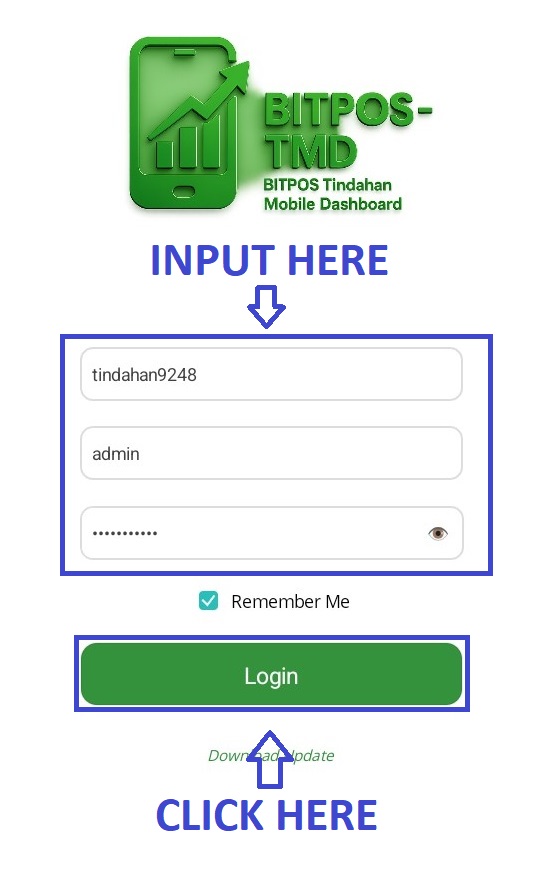
- STEP 2: Log In
- Enter your admin credentials to securely log in to the system.
 |
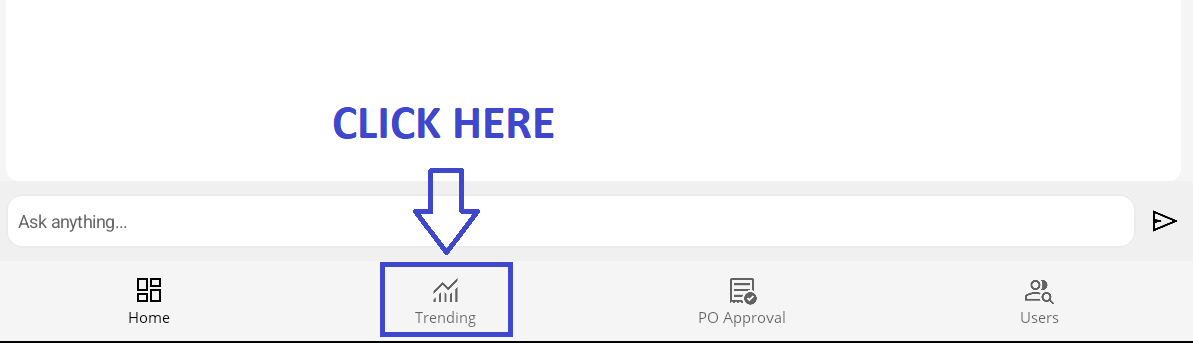
- STEP 3: Click Trending
- Tap on the Trending tab located at the bottom of the dashboard to view item sales data.
 |
- STEP 4: View Items Sold List
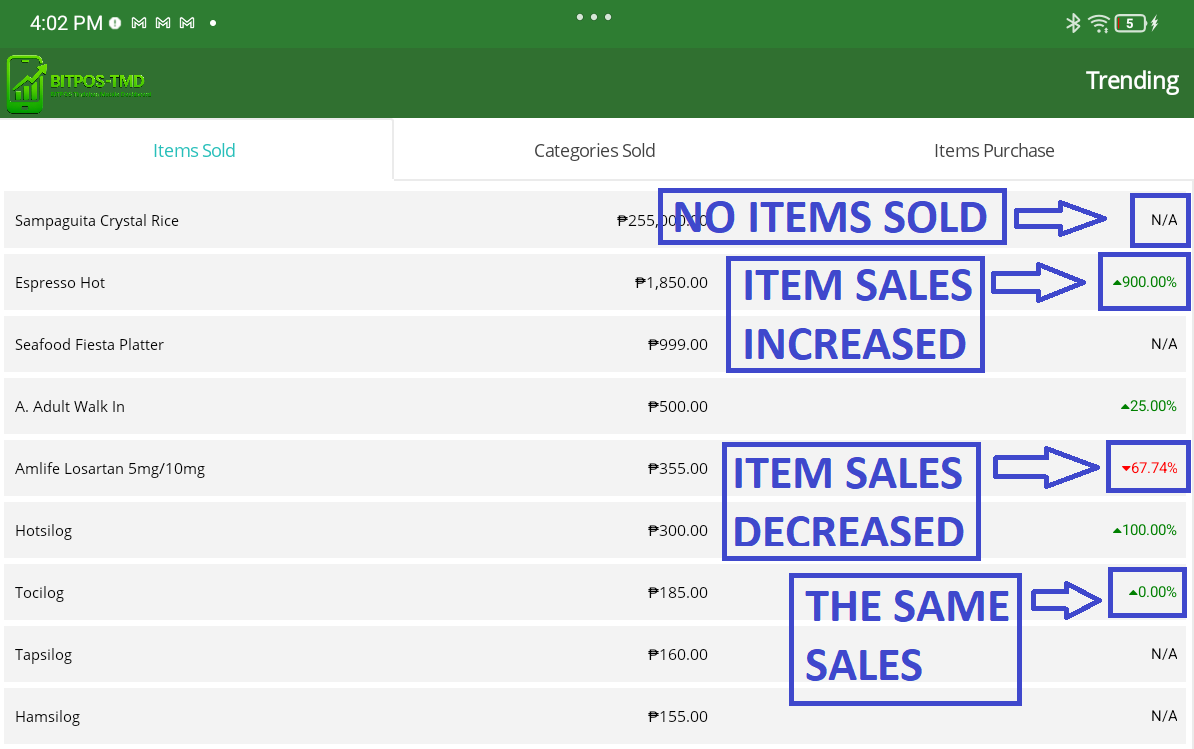
- Under Items Sold, you can see a list of all products and their current performance.
- N/A – Indicates that nothing has been sold for that item.
- Green with an Up Arrow (↑) – The item’s sales have increased compared to the previous period.
- Red with a Down Arrow (↓) – The item’s sales have decreased.
- Green with Up Arrow and 0.00% – Sales are the same as before (no change).
 |