
Main /
KTV Cashiering – Hourly Process
- STEP 1: Open MOT App
- Launch the MOT application on your device.
 |
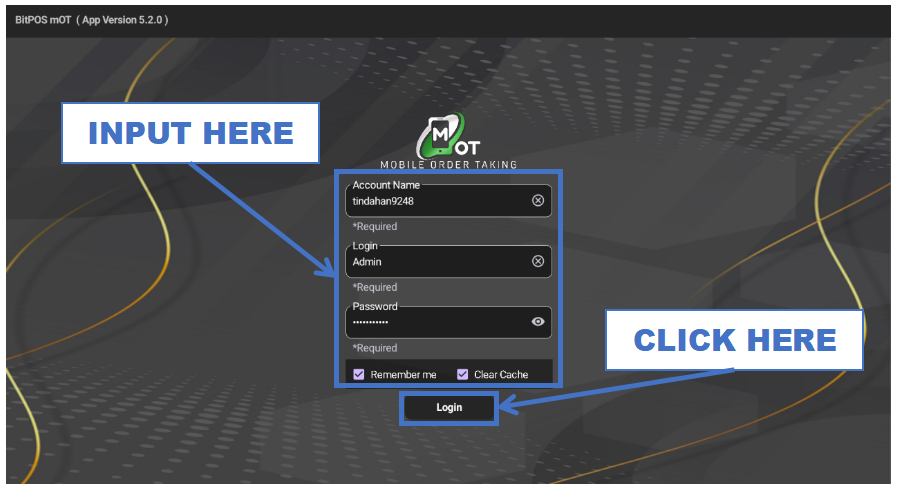
- STEP 2: Log In
- Enter your admin credentials to access the system.
 |
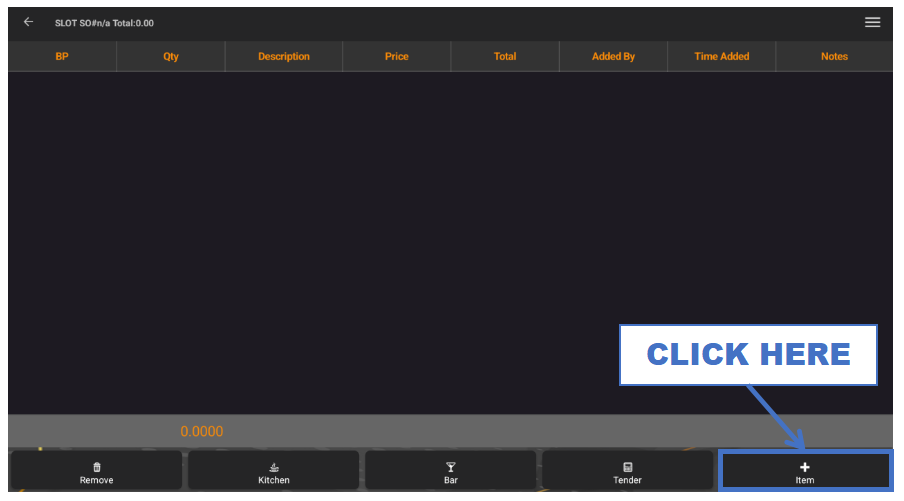
- STEP 3: Click + Item
- Tap the + Item button to add an hourly KTV session.
 |
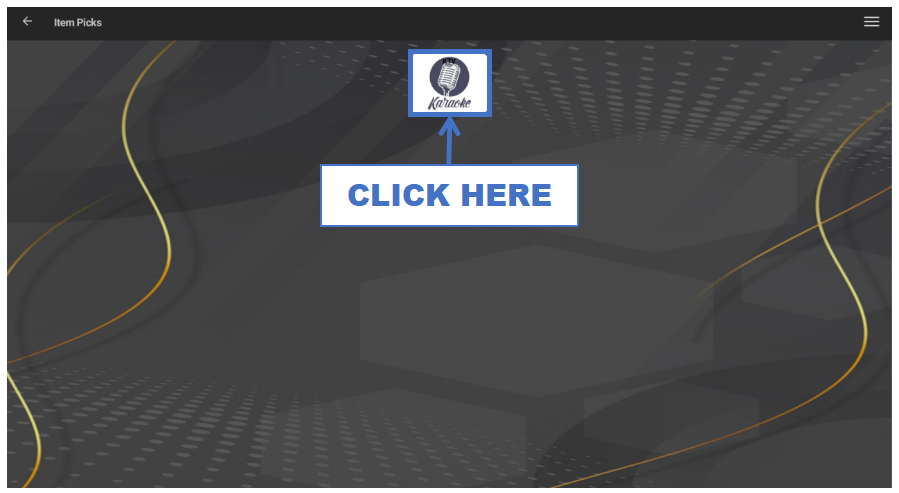
- STEP 4: Click Category
- Select the appropriate category (e.g., KTV Room).
 |
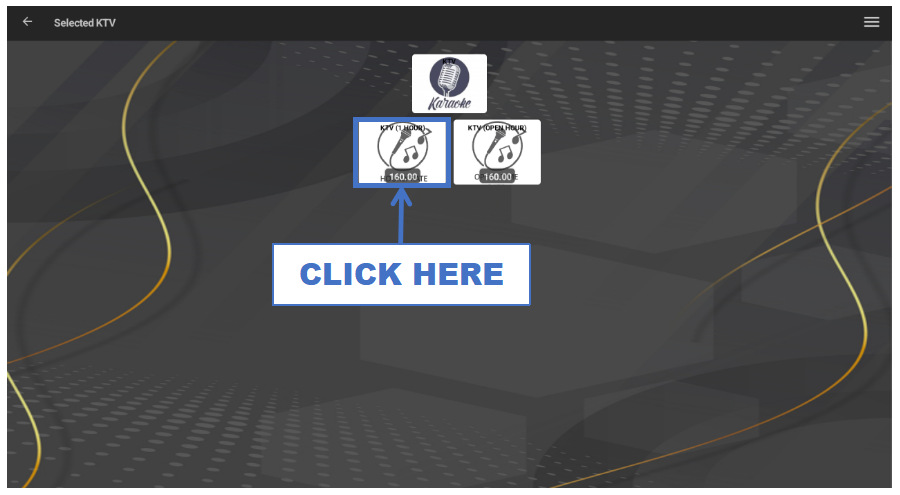
- STEP 5: Click Item (e.g., KTV – 1 Hour)
- Select the hourly KTV package such as KTV (1 Hour).
 |
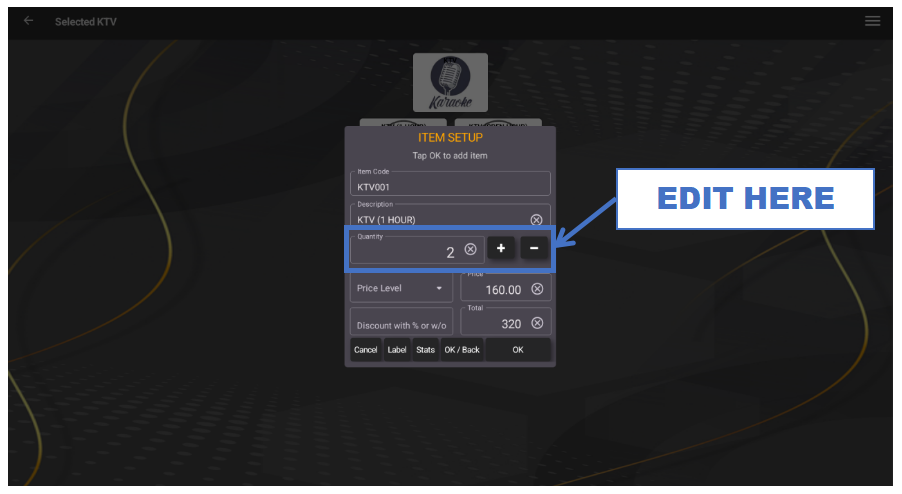
- STEP 6: Edit Quantity
- Adjust the number of hours, if needed.
 |
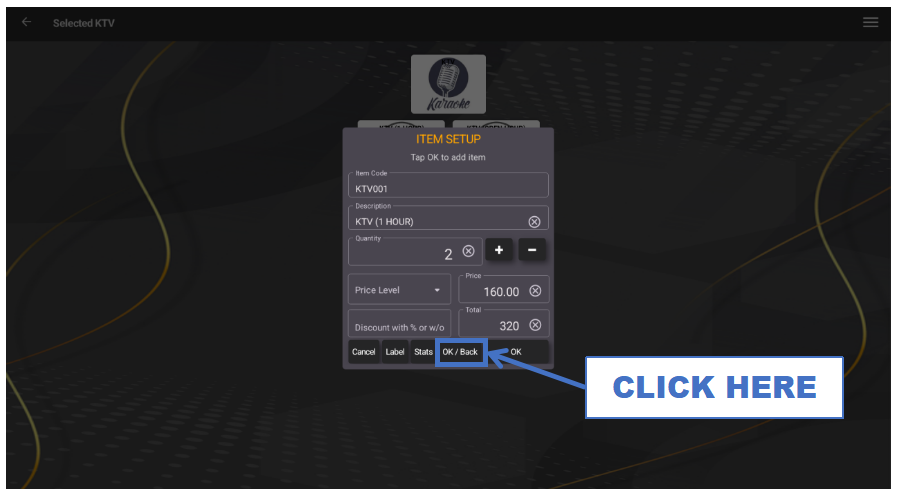
- STEP 7: Click OK/Back
- Save the selected hourly item and return to the transaction screen.
 |
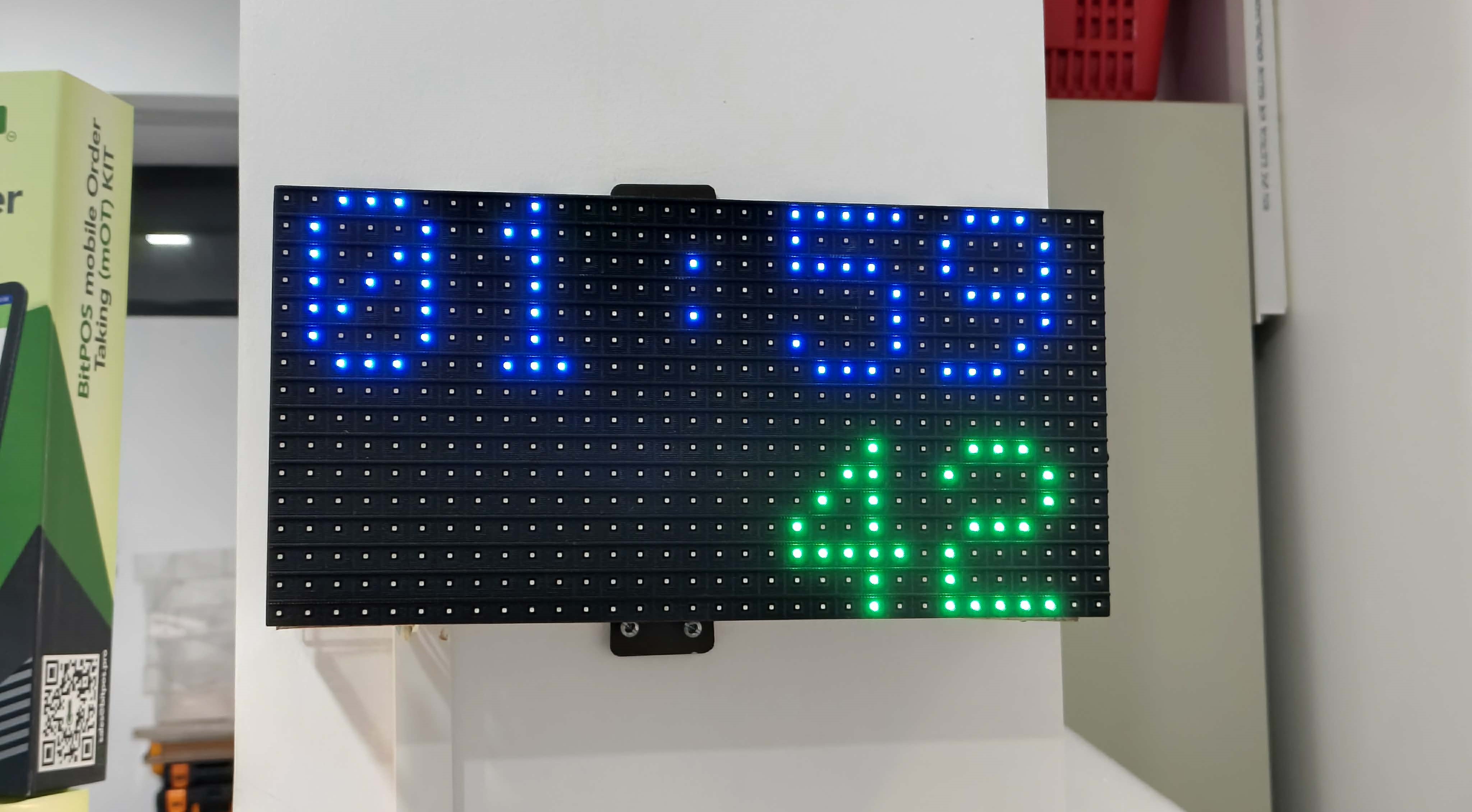
- STEP 8: Countdown Will Start
- The KTV room hourly countdown automatically begins after adding the item.
 |
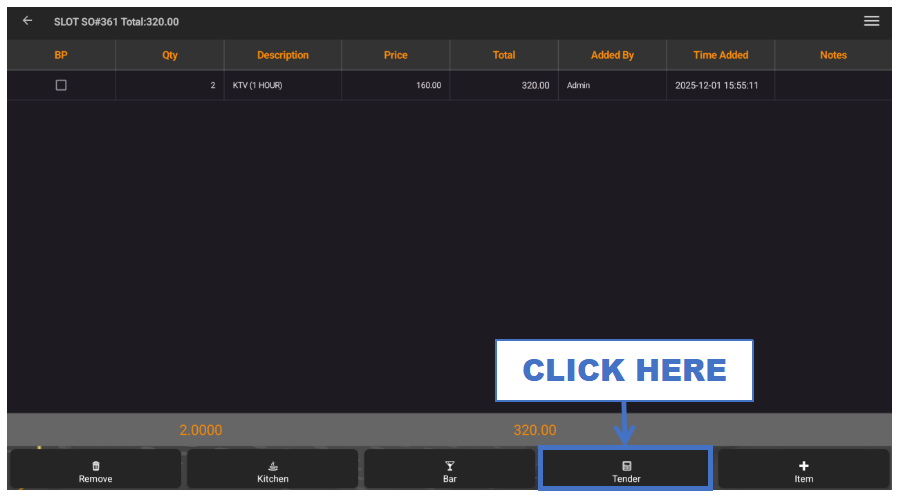
- STEP 9: Click Tender
- Go to the payment section to continue.
 |
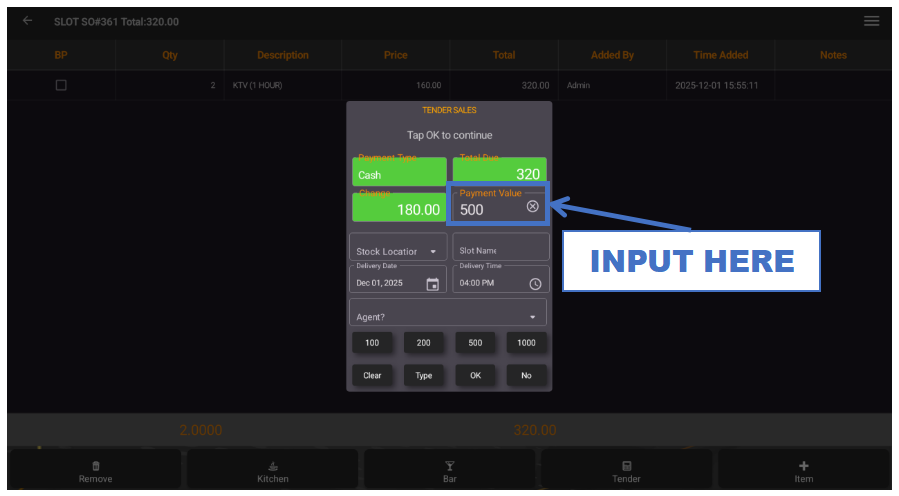
- STEP 10: Input Payment Value
- Enter the customer’s payment amount.
 |
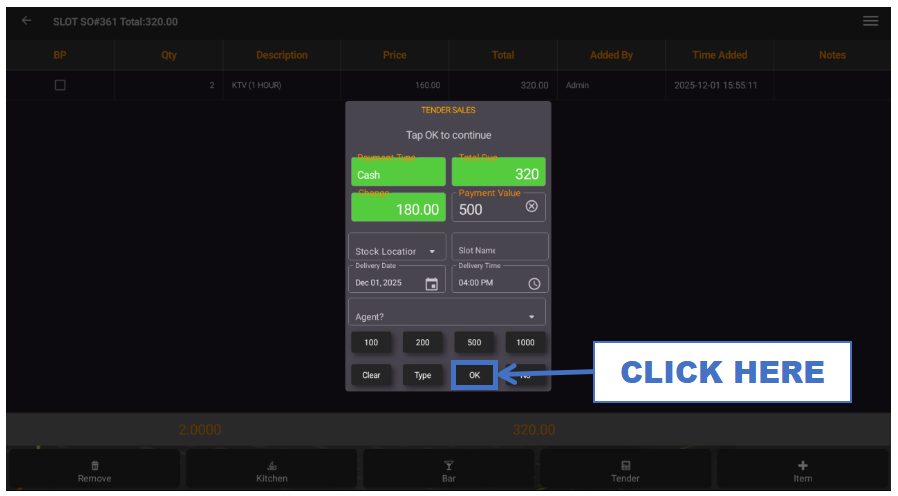
- STEP 11: Click OK
- Finalize the transaction and confirm payment.
 |
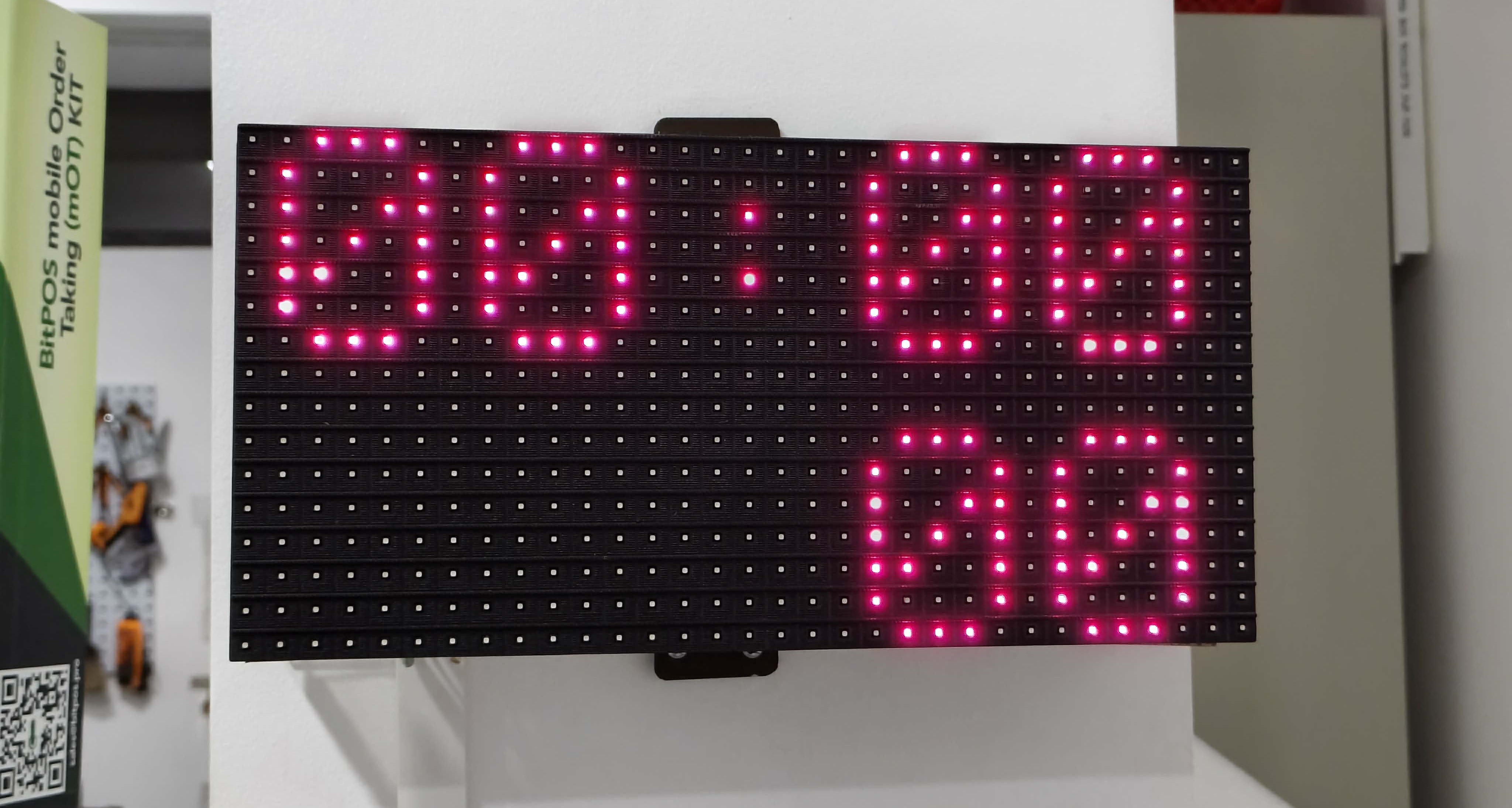
- STEP 12: Countdown Behavior
- When the countdown reaches zero, all devices and music in the room will automatically stop.
 |