
Main /
LPG Business – Cashiering
- STEP 1: Open MOT App
- Launch the MOT application on your device.
 |
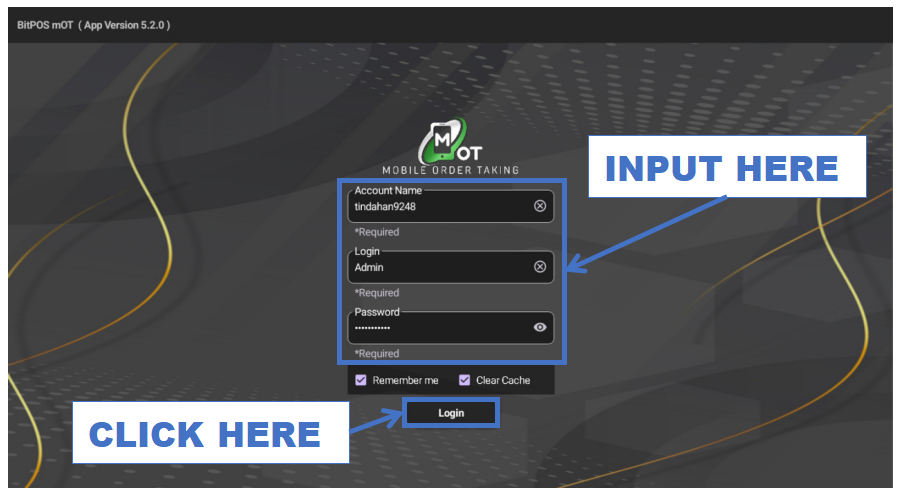
- STEP 2: Log In
- Enter your admin credentials to access the system.
 |
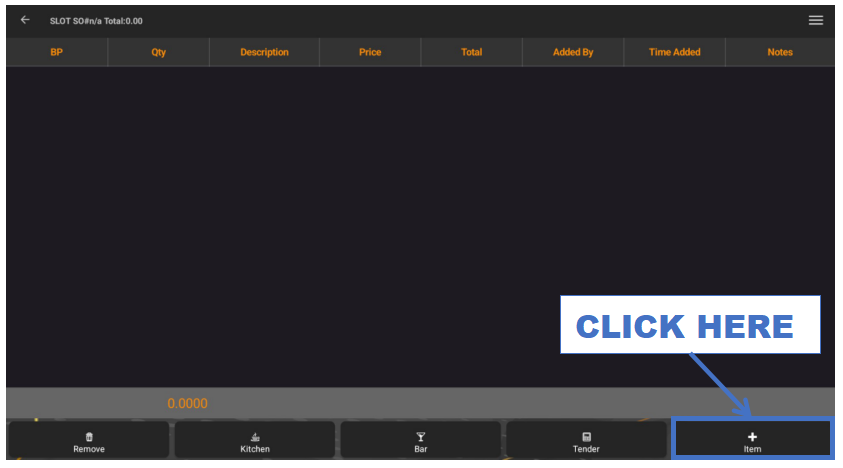
- STEP 3: Click + Item
- Tap the + Item button to start adding products.
 |
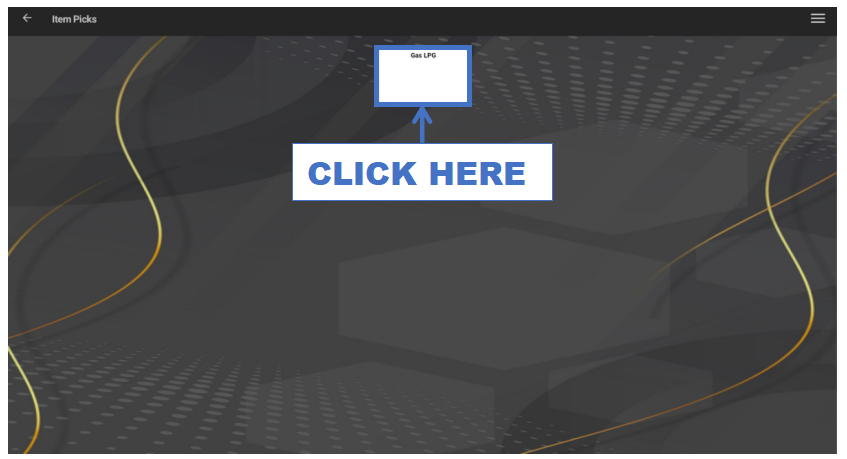
- STEP 4: Click Category
- Select the appropriate product category.
 |
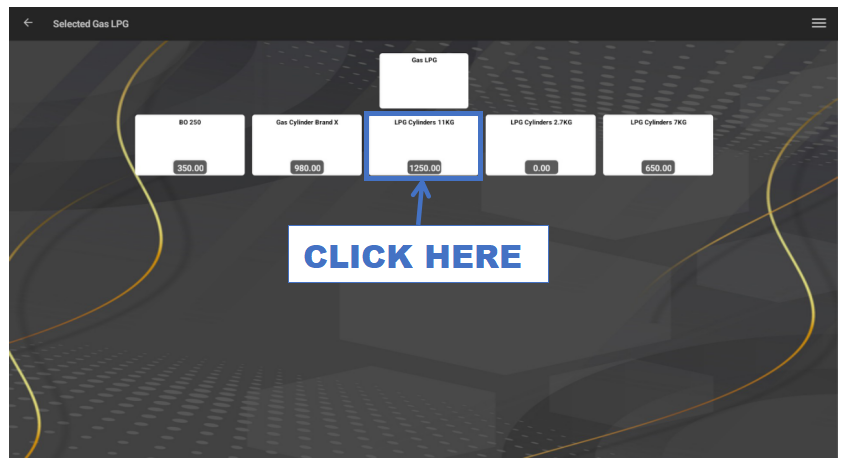
- STEP 5: Click Item
- Choose the LPG product to add to the transaction.
 |
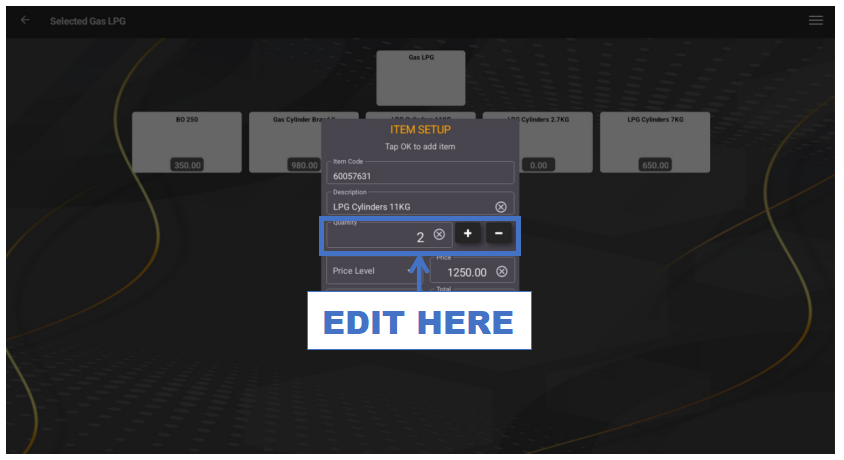
- STEP 6: Edit Quantity
- Enter the correct quantity of the item being purchased.
 |
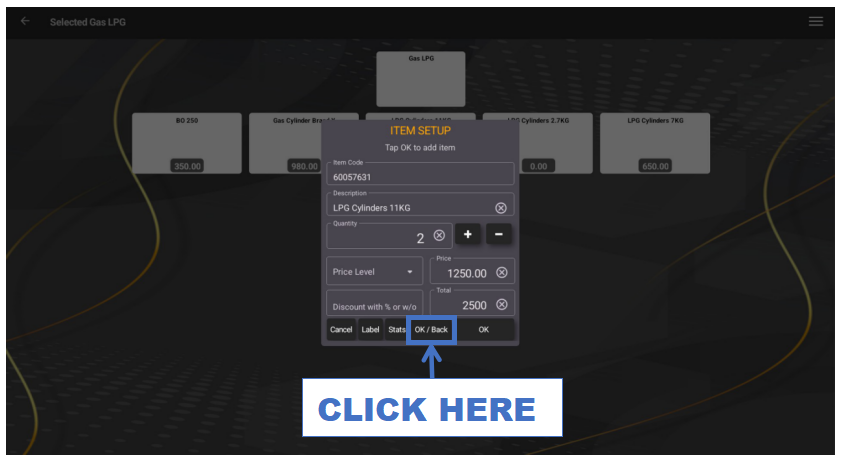
- STEP 7: Click OK/Back
- Save changes and return to the transaction screen.
 |
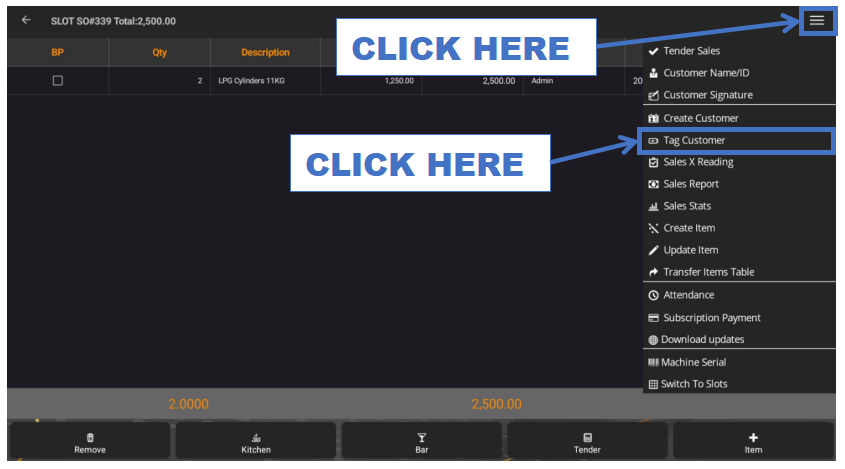
- STEP 8: Click Tag Customer
- Assign the sale to a specific customer.
 |
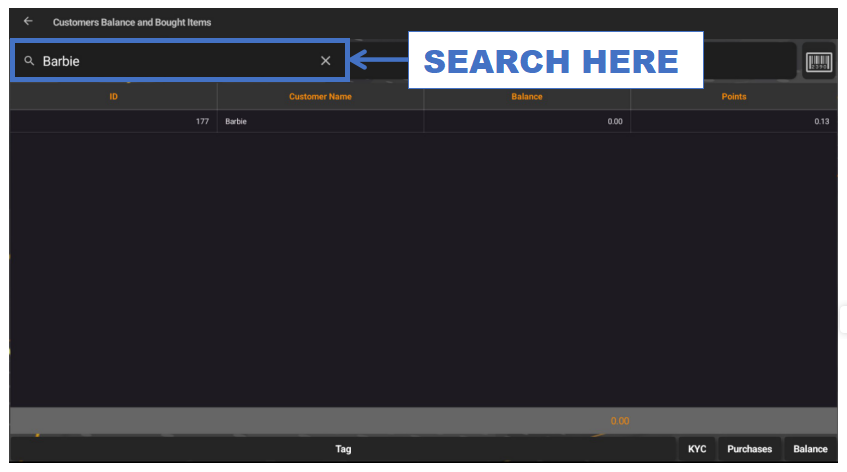
- STEP 9: Search Customer Name
- Use the search bar to look up the customer.
 |
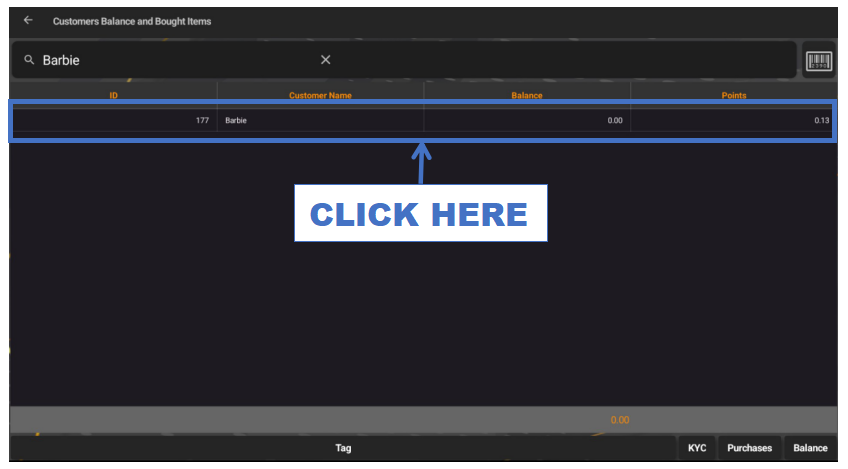
- STEP 10: Click Customer Name
- Select the correct customer from the list.
 |
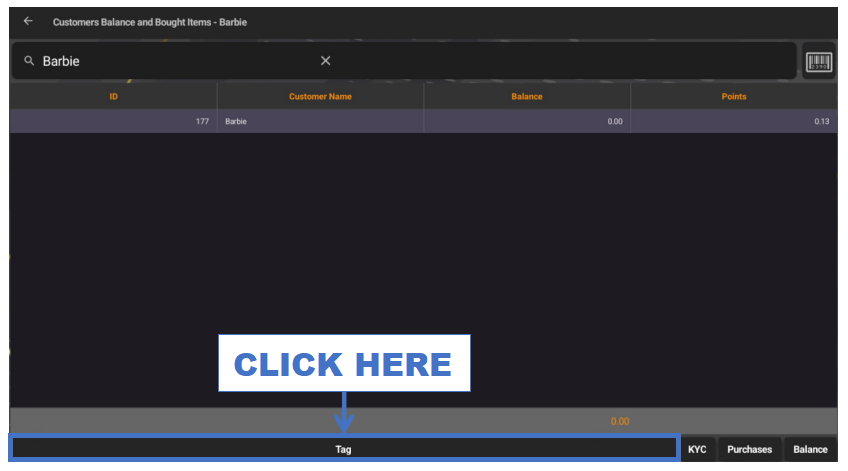
- STEP 11: Click Tag
- Confirm tagging the customer.
 |
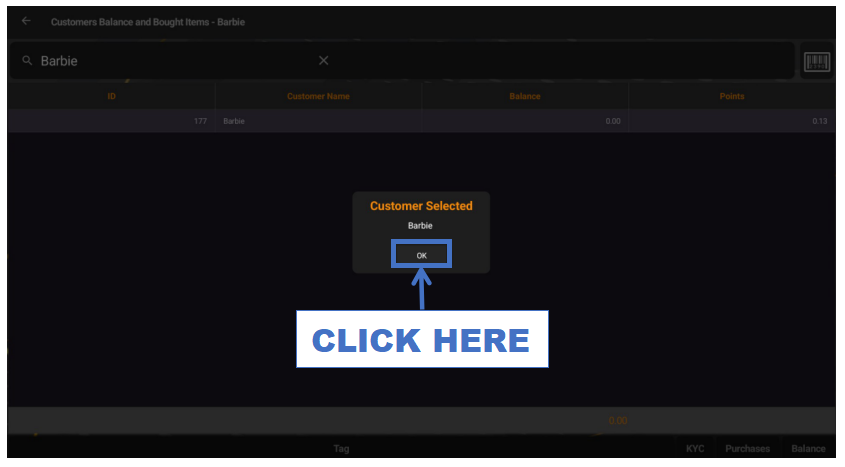
- STEP 12: Click OK
- Save the assignment.
 |
- STEP 13: Click Tender
- Proceed to the payment screen.
 |
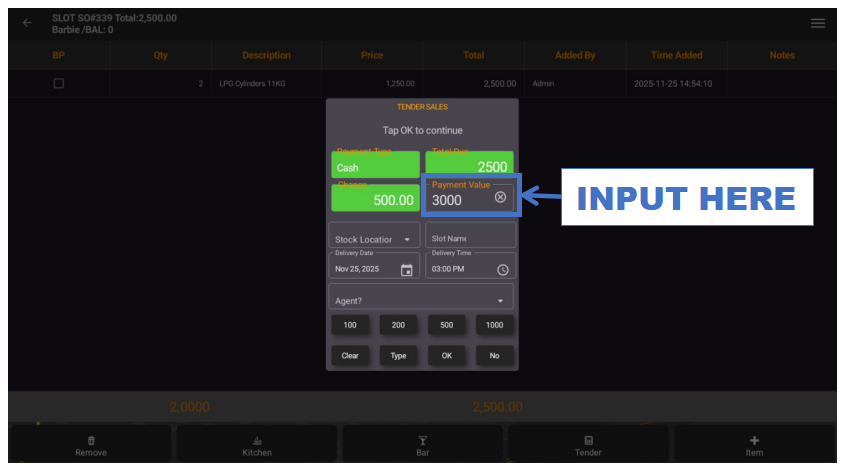
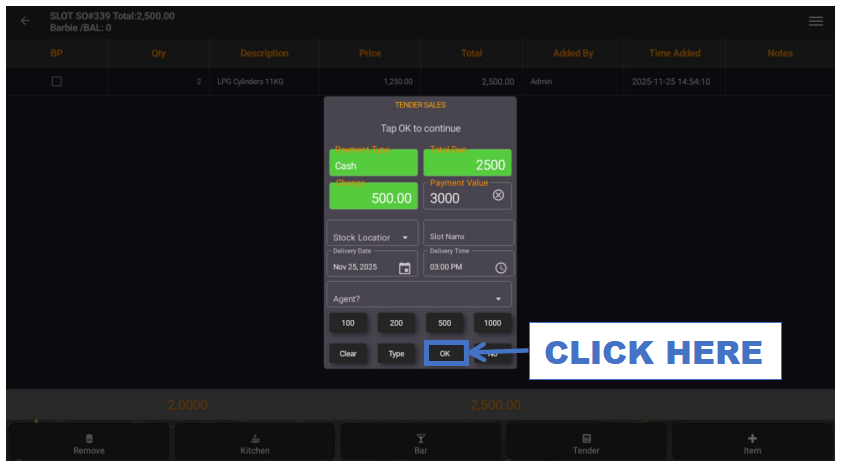
- STEP 14: Input Payment Value
- Enter the amount received from the customer.
 |
- STEP 15: Click OK
- Complete the payment and finalize the transaction.
 |