
Main /
How to Journal Entry Expense Based by Branch
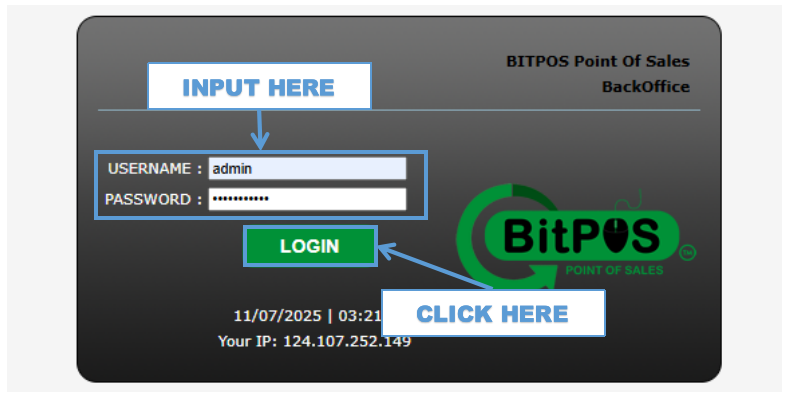
- STEP 1: Log in
- Access the Back Office using your admin credentials.
 |
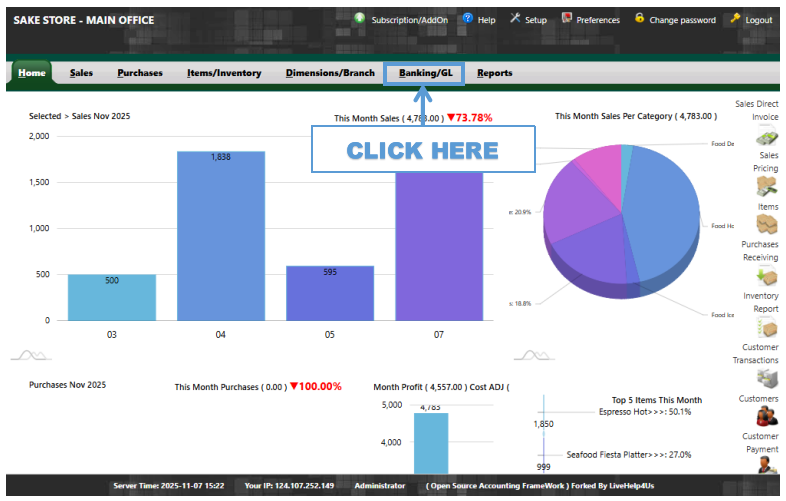
- STEP 2: Click Banking/GL
- From the main menu, select Banking/GL to open accounting options.
 |
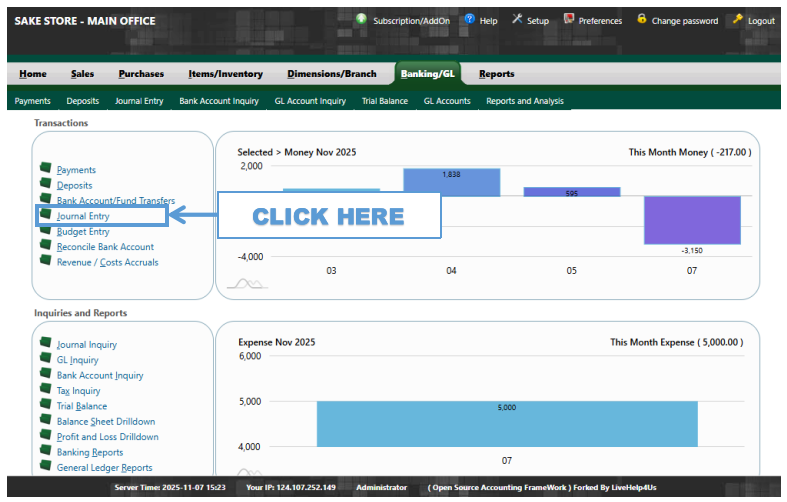
- STEP 3: Click Journal Entry
- Go to Journal Entry to create a new expense transaction.
 |
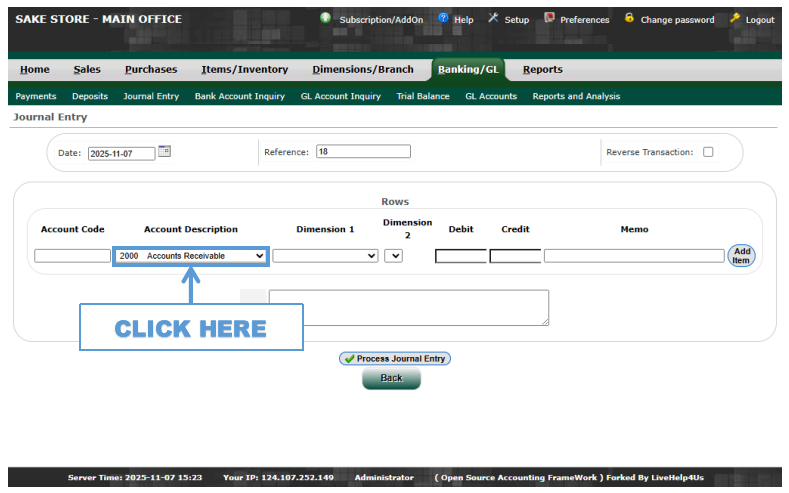
- STEP 4: Click Account Description
- Open the Account Description dropdown list.
 |
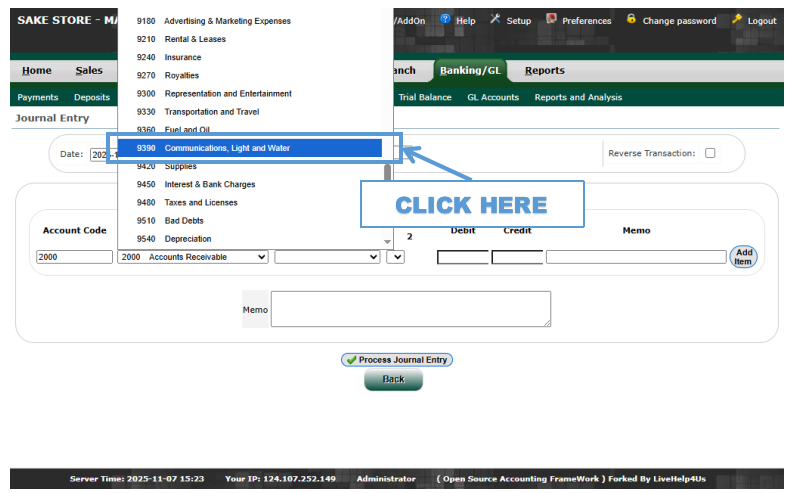
- STEP 5: Choose the Account Description (Where the Money Goes)
- Select the expense account where the payment will be recorded (for example, Communications, Lights, and Water).
 |
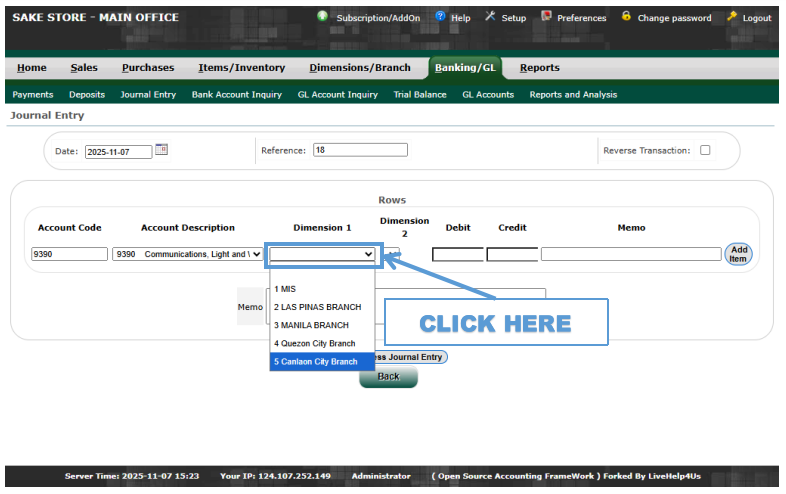
- STEP 6: Click Dimension 1
- Click Dimension 1 to assign the expense to a specific branch.
 |
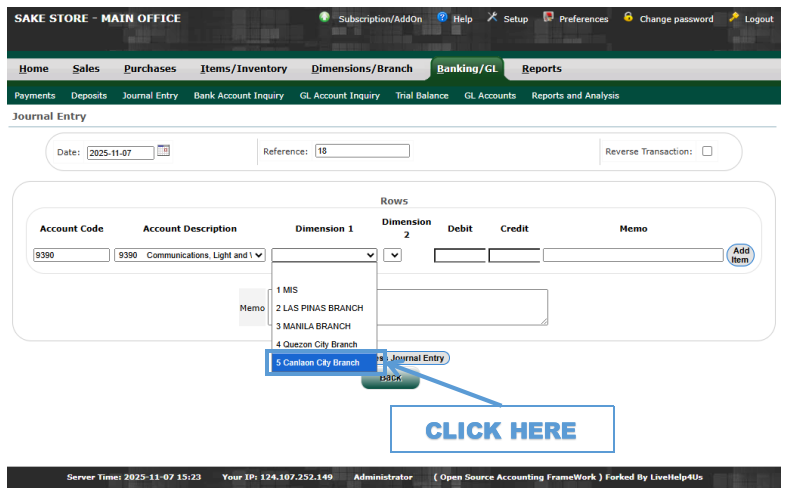
- STEP 7: Choose the Dimension
- Select the branch dimension (for example, Canlaon City).
 |
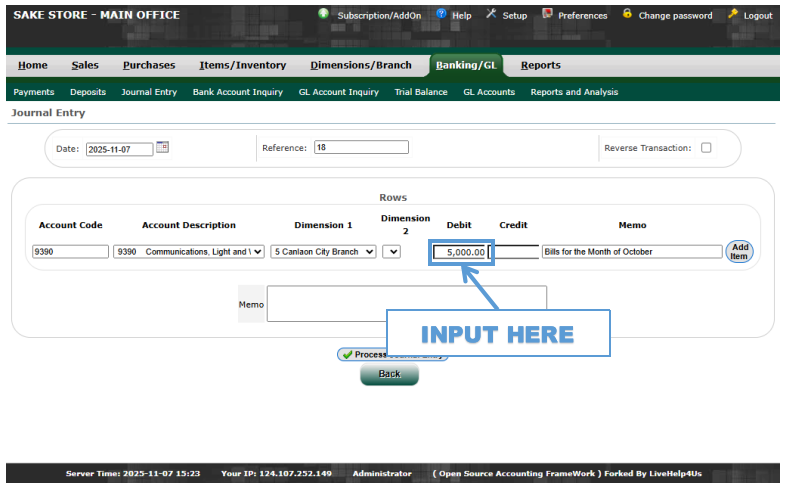
- STEP 8: Input Debit Amount
- Enter the amount to be debited (for example, 5,000.00).
 |
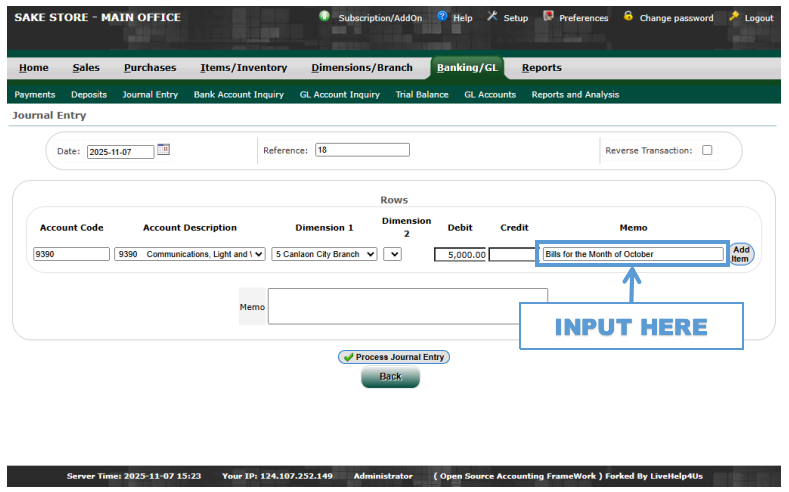
- STEP 9: Input Memo
- Add a note in the Memo field (for example, Bills for the Month of October).
 |
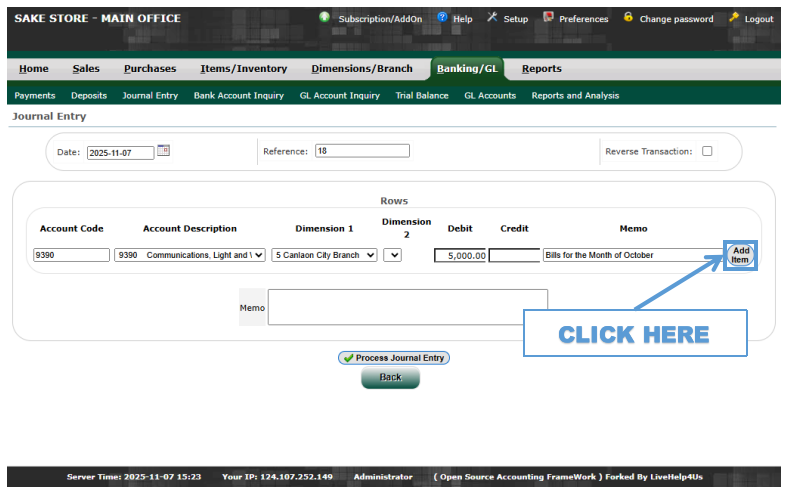
- STEP 10: Click Add Item
- After completing the debit entry, click Add Item to proceed with the credit entry.
 |
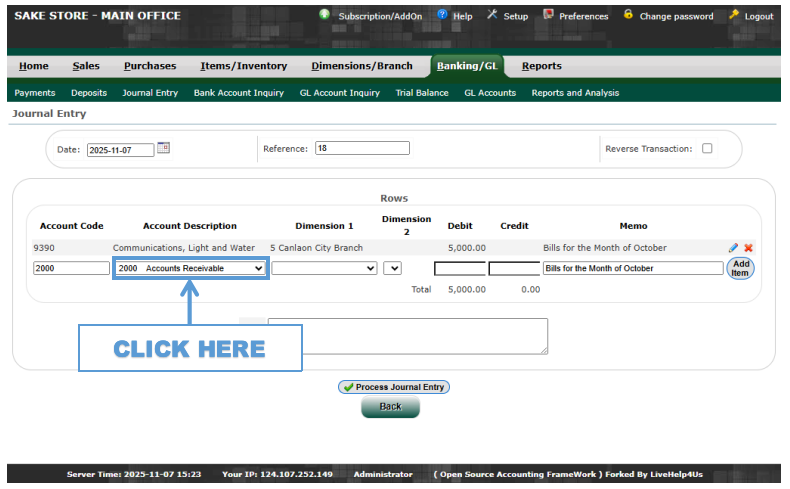
- STEP 11: Click Account Description
- Open the Account Description dropdown again.
 |
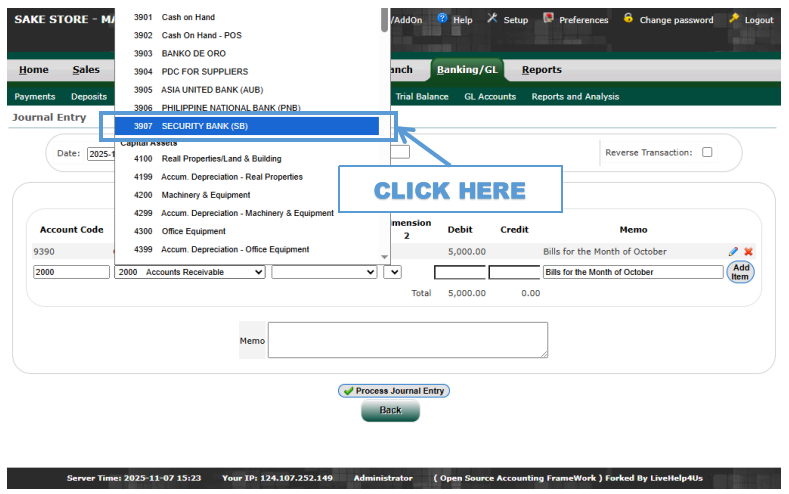
- STEP 12: Choose the Account Description (Where to Get the Money)
- Select the account where the funds will be deducted (for example, Security Bank).
 |
- STEP 13: Input Credit Amount
- Enter the same amount as the debit (for example, 5,000.00) in the Credit column to balance the journal entry.
 |
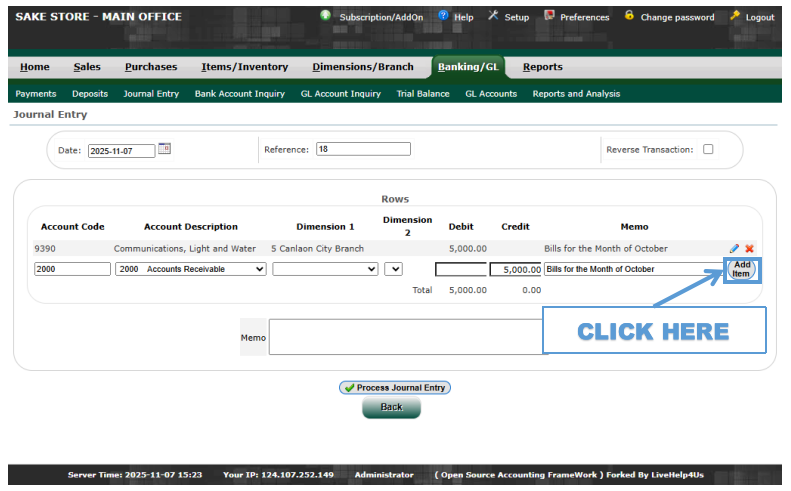
- STEP 14: Click Add Item
- Add the credit entry to finalize the journal record.
 |
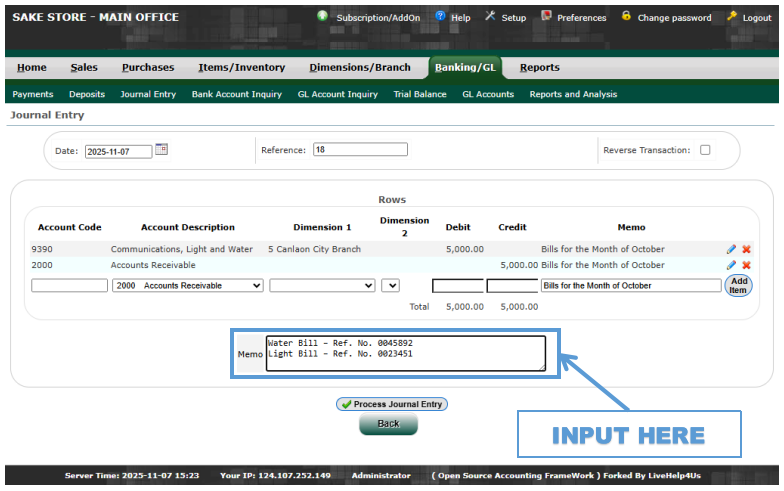
- STEP 15: Input Memo
- Enter the reference number from the bill in the Memo field for proper tracking.
 |
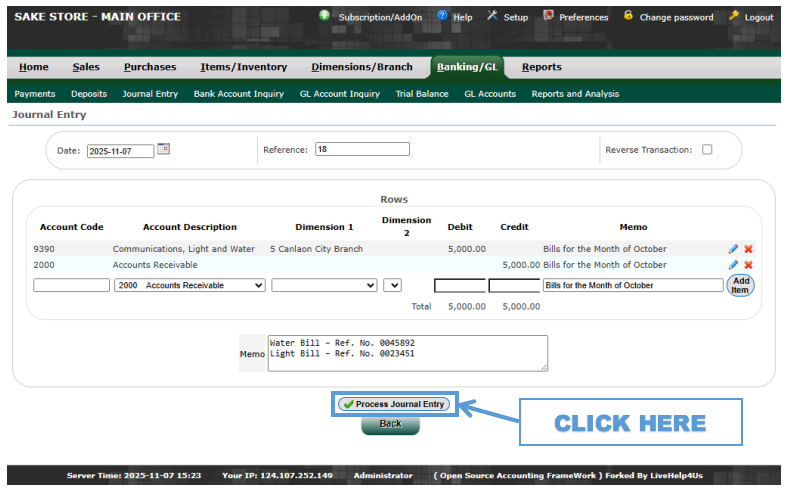
- STEP 16: Click Process Journal Entry
- Click Process Journal Entry to finalize and record the transaction.
 |
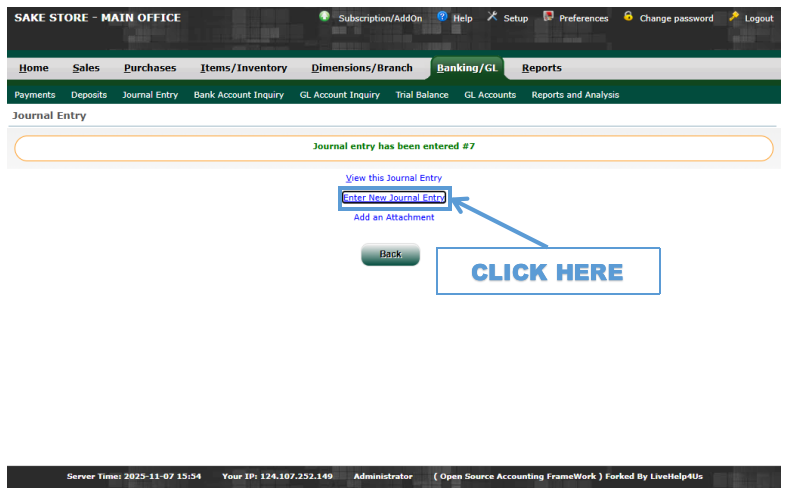
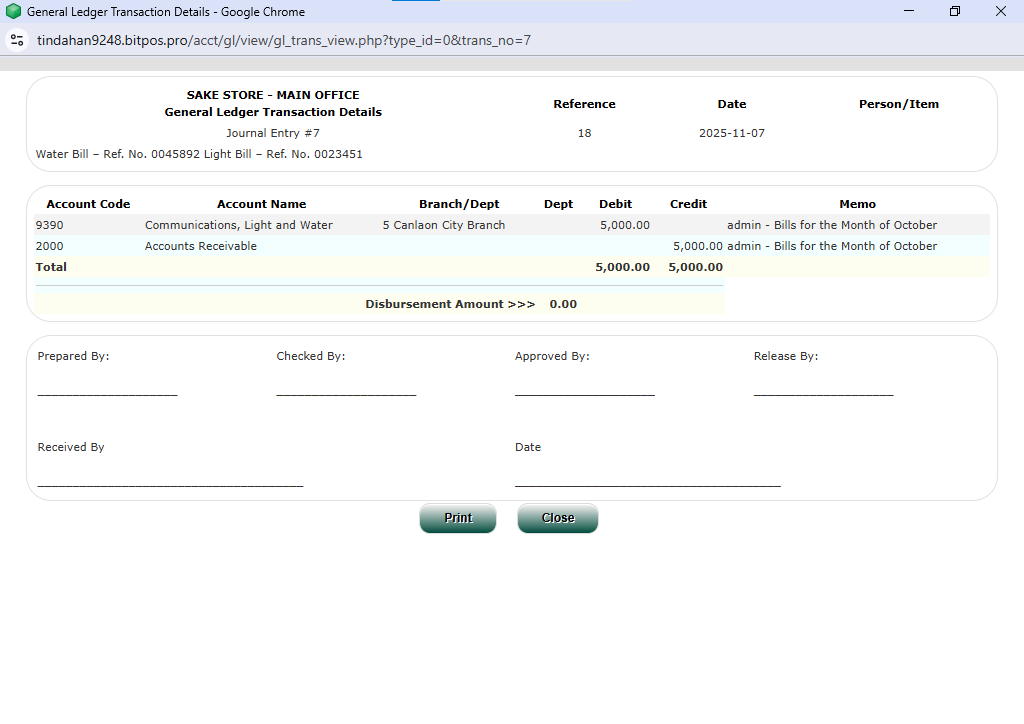
- STEP 17: Click View This Journal Entry
- Click the View This Journal Entry button to open the details of the processed transaction.
 |
- STEP 18: Here You Can See the Journal Entry
- The system will display the complete journal entry, including the debit, credit, dimension, and memo details for verification.
 |