
Main /
How to Create Dimension Based by Branch
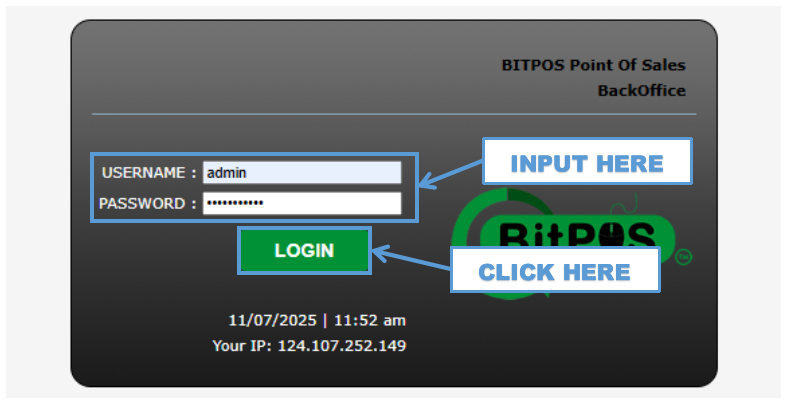
- STEP 1: Log in to the Back Office
- Access the Back Office using your admin credentials.
 |
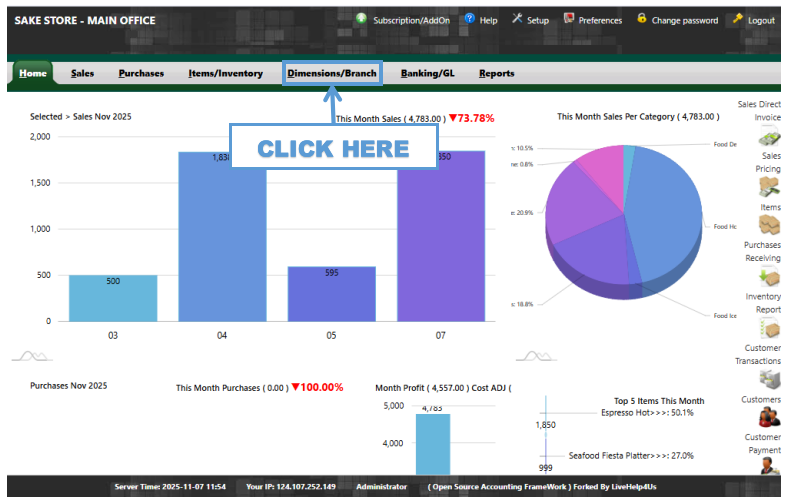
- STEP 2: Click Dimensions/Branch
- From the main menu, select Dimensions/Branch to open the branch dimension settings.
 |
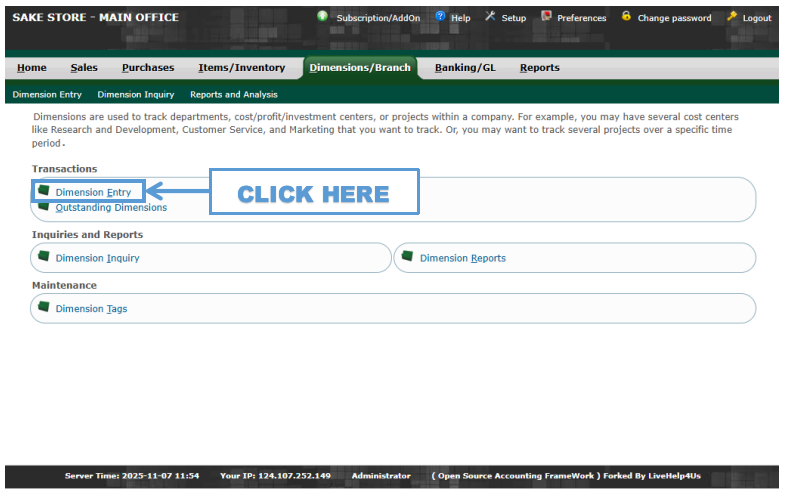
- STEP 3: Click Dimension Entry
- Click Dimension Entry to create a new branch record.
 |
- STEP 4: Input Name (Branch Name)
- Enter the name of the branch (for example, Canlaon City Branch).
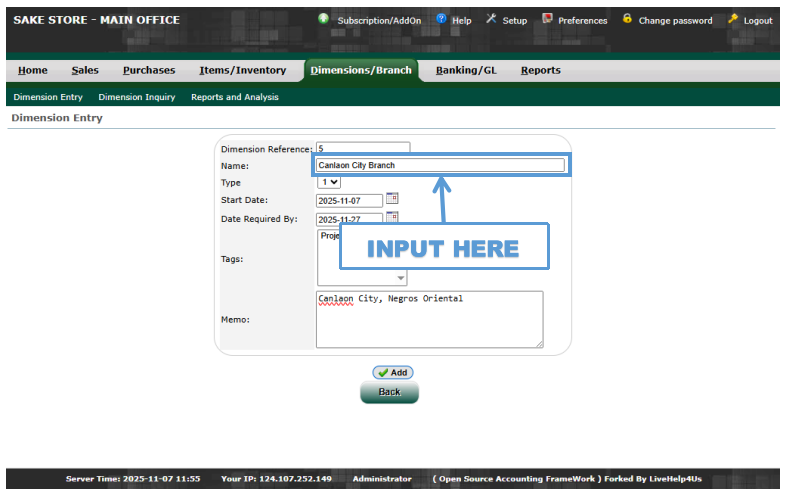 |
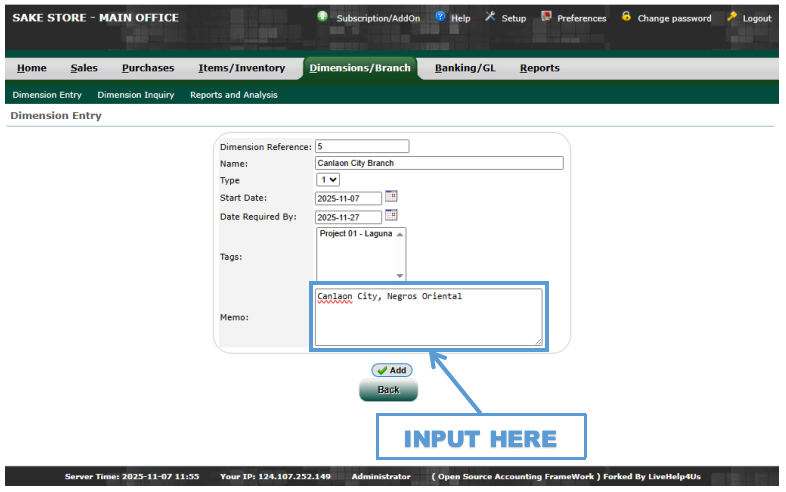
- STEP 5: Input Memo
- Type the exact address of the branch in the Memo field (for example, Canlaon City, Negros Oriental).
 |
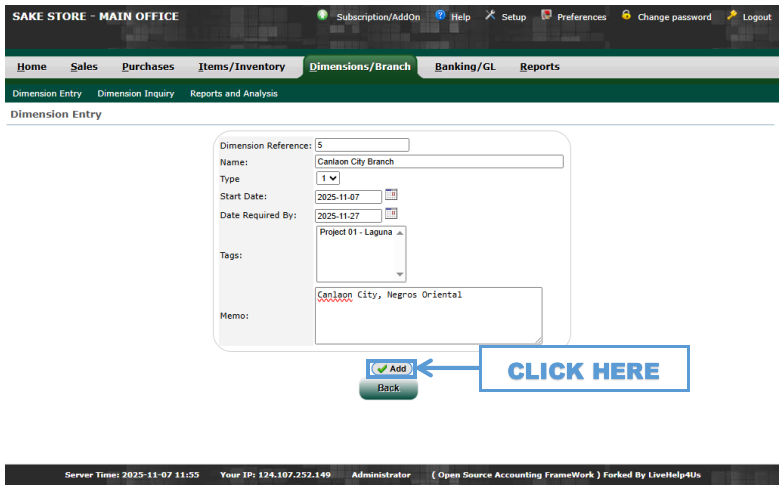
- STEP 6: Click Add
- Finalize the process by clicking Add to save the new branch dimension.
 |
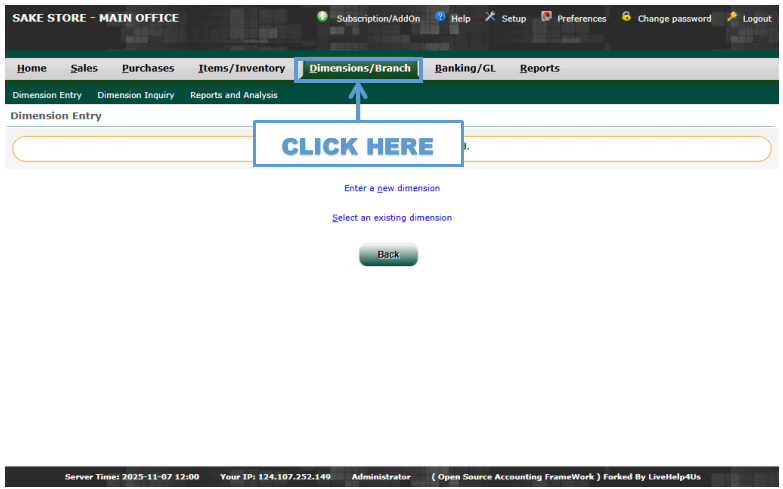
- STEP 7: Click Dimensions/Branch
- Go back to Dimensions/Branch from the main menu.
 |
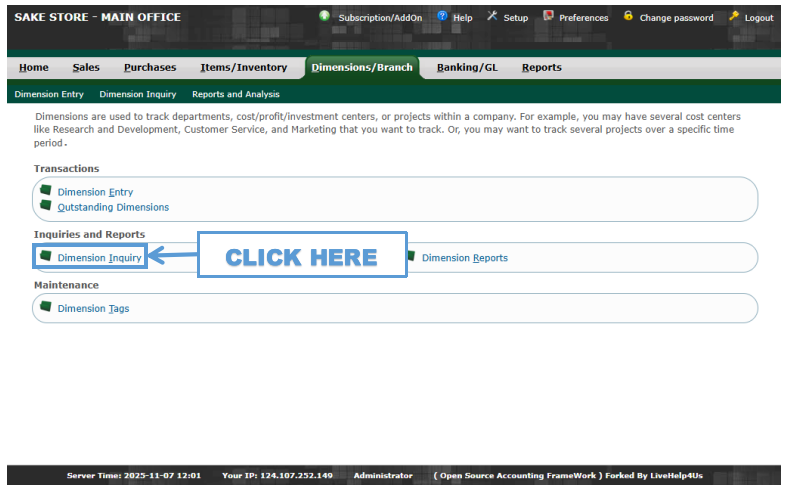
- STEP 8: Click Dimension Inquiry
- Select Dimension Inquiry to view the list of created dimensions.
 |
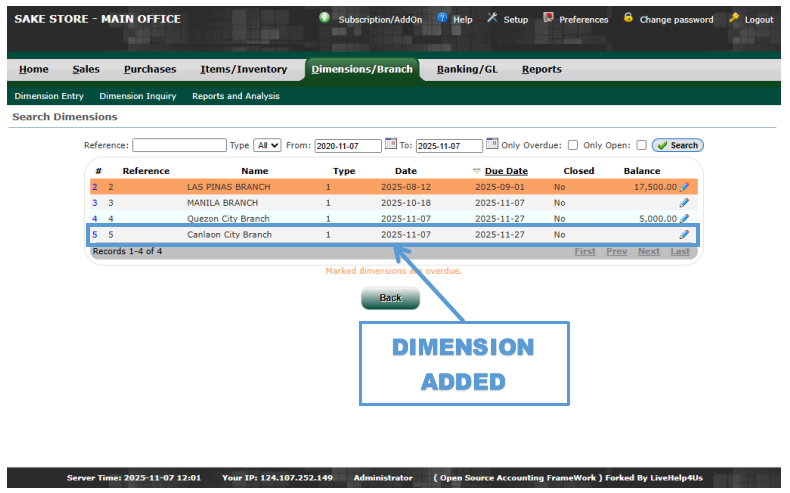
- STEP 9: Here You Can See the Dimensions Added
- The system will display the list of branches, where you can confirm that the Canlaon City Branch has been successfully added.
 |